

Appearance
Screen layout
After you log in, the screen is made up of the following regions. This documentation uses these names when referring to positions on the screen.
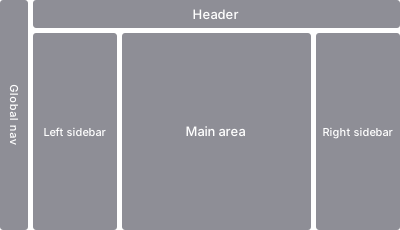
Depending on the feature or screen, only some of these regions might be shown. Even if a region isn't shown, the positions of the other regions follow this layout.
Regions
| Region | Position | Description |
|---|---|---|
| Global nav | Left edge of the screen | Entry points to the main features and settings |
| Header | Top of the screen | The screen title, action buttons, and more |
| Left sidebar | Left of the main area | Lists, trees, filters, and more |
| Main area | Center of the screen | The main content for that screen |
| Right sidebar | Right of the main area | Detail information, auxiliary panels, and more |
Global nav
The region at the left edge of the screen. It provides workspace switching and entry points to the main features and settings. For the menu structure, see Navigation.
Header
The region at the top of the screen, to the right of the global nav. It holds the title of the open resource, action buttons, and similar controls.
Left sidebar
The region below the header, to the left of the main area. It shows things like a folder tree or filters, mainly to let you choose what's shown in the main area.
Main area
The region at the center of the screen. It shows the main content for that screen, such as the body of a notebook, a list, or a settings form.
Right sidebar
The region to the right of the main area. It shows detail information, auxiliary panels, and similar content. It might be closed, or might not exist at all, depending on the feature.